modules

Pokazywanie postów oznaczonych etykietą tutorial. Pokaż wszystkie posty

środa, 10 października 2012

How to turn on error reporting in PrestShop ?

This article is copied from: How to turn on error log / error reporting in PrestaShop ?

In this article you will read something about debuging modules and other shop problems. This article should be taken as an introduction to self-troubleshooting in the own store. This tutorial works in all versions of prestashop, in 1.5 too.

Turning error reporting on in PrestaShop:

By default, in PrestaShop this feature is disabled for safety reasons. Here is how to turn on PHP errors in shops based on PrestaShop:


Open and edit config.inc.php file

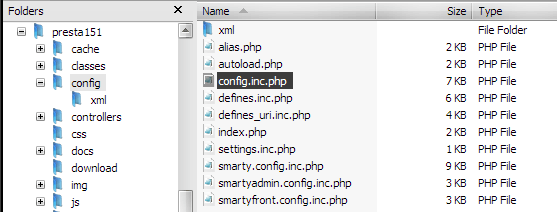
You first need to find the config.inc.php file in directory config in your main prestashop dir, exactly as we show on image below:


you must open this file and edit one setting parameter:

@ini_set('display_errors', 'off');

As you probably see and as we say, the display_errors value is set to off by default. You must turn it on. How to do that? just change it to:

@ini_set('display_errors', 'E_ALL');

and save the config.inc.php file. Thats all!


Did you know that display_errors parameter can have other values? Read more in official article about turning on error reporting in prestashop


środa, 19 września 2012

How to input html, css, javascript code into my PrestaShop site?

In this article i will write about adding html, css, javascript and other "client side" code into any place in our shop. Of course you can do it manually by editing template .tpl files of your shop theme. However, this method can be a bit annoying and difficult for users without a basic knowledge of programming languages ​​and smarty. In this short article i want to describe free module for adding html, css, javascript code in Prestashop.


Module is called HTML BOX and you can download it for free from MyPresta.eu website
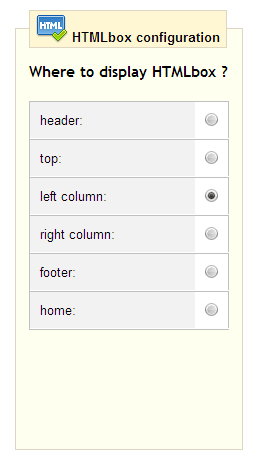
Usage of this module is very simple. Just download and install this module in your prestashop back office. Then you must go to configuration site of this module and select place, where you want to input html, css, javascript, other code. Exactly as we checked on image attached below:

Html box configuration

as you see, you can check one position from many front-office hook list.
  • You can display your code in:
  • Header section of your shop
  • Top section of your shop
  • Left collumn of your shop
  • Right collumn of your shop
  • footer section of your shop
  • and home section of your shop

We checked left collumn. 


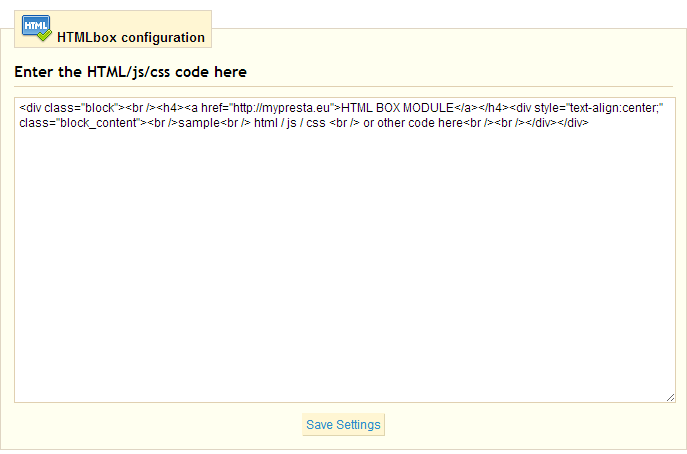
Text box window near hook list is place, where you put the code you want to dispaly. It could be any widget from other sites such like facebook, twitter, pinterest etc. So, put the code there and save settings of this module. Now you can refresh your shop page. You will see the new code exactly there, where you want and checked in module options.


niedziela, 26 sierpnia 2012

How to reset Prestashop admin password


Reset Prestashop admin password

If you dont remeber your Prestashop admin password and you are still trying to log in into Prestashop back office without effects. This short paper is exactly for you. With this article you will know how to reset your Prestashop admin password. Read this step by step tutorial for reset Prestashop password.


1. Log in into your FTP account
For reset prestashop password you must be able to log in into your Prestashop FTP account. That's important because you'll need access to one file in Prestashop directory described in next step.

2. Check config/settings.inc.php file
Look in config/settings.inc.php file in your Prestashop directory and find out the _COOKIE_KEY_ value. This value in IT nomencalture is called as salt.

3. Log in into your PhpMyAdmin
You must have access to PhpMyAdmin or other database managment system. If you're logged in, try to run the following SQL code and replace the <> variables with values:
<_COOKIE_KEY_> that is salt value from config/settings.inc.php file described in step 2
<yourNewPassword> that is your new password value
<youremailaddress> that is your administrator email address, probably yours ;)

1
UPDATE employee SET passwd = md5(“<_COOKIE_KEY_ value><yourNewPassword>”) WHERE email = “<youremailaddress>”;

That's all. Now you can login into prestashop backoffice.

This article is copied from: How to reset PrestaShop admin password


Prestashop Discount Generator module

piątek, 24 sierpnia 2012

How to install modules in Prestashop ? Step-by-step tutorial

Ability to use modules in Prestashop are the most important thing. With the modules created by the Prestashop community (which mean community of normal users, agencies, developers, freelancers etc.) anyone, who use Prestashop e-commerce solution can exted store for new functionalities and features. Professional modules created by agencies or experienced developers are usually paid - you have a guarantee that the module was professionally executed and in compliance with applicable standards, safety rules and other important things in software developing. You can also get free modules, but you have no guarantee that everything will work correctly without compromising the safety of your store.

In this paper you will read about procedure of installing Prestashop modules. I hope, that this article will help you in understanding an essence of installing modules, and will be helply in your first steps with extending functionalities of shop based on Prestashop engine.

How to install prestashop module?

1) Log in into your shop
In first step you must login to your  Prestashop back-office. Remember, only user with granted privileges to access to the modules section can instal, configure and uninstall modules.  Make sure that you log in to the correct account. It would be best if you log in with an administrator account.  I hope, that you remeber your email and password used in installation process ;) 

prestashop backoffice login form by MyPresta.eu

2) Go to "Module" section
If you are already logged in into Prestashop backoffice correctly, now you can go to "Modules" section. Just click in "Modules" position in Administration tabs as we show on the picture below:

select Modules in your prestashop backoffice MyPresta.eu

3) Click on  " Add a new module Add a module from my computer"
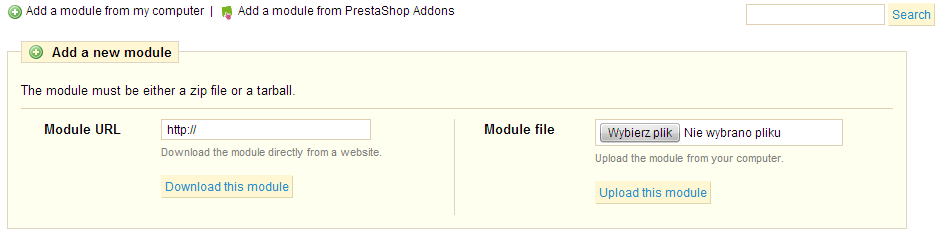
In modules section you will see two buttons:  Add a new module Add a module from my computer   |    Add Add a module from PrestaShop addons. Below this two buttons you will see list of modules that are rolled up, by category. After clicking correct button, you will see two simple forms:


As you see, you can add modules in two ways. You can upload module from URL, and upload from your HDD (hard disc drive) or other physical disc.

3) Uploading and install module from URL
To upload module from URL you must have a valid link (URL) which goes to archive with packed module. Paste the correct link into "Module URL" input field and click "Download this module" button. For example we upload our Import vouchers from file in Prestashop module. As you see on image below, when everything is ok, you can find module using search tool. Just write first letters of module name and you will see full name of module in clickable tooltip:


Just click on it and go to 4 step for read about last "installing" procedure.

3) Uploading and install module from your HDD (hard disc drive)
If you downloaded any module into your HDD, you must upload it before you want to install it in your shop. Click on upload form and select correct file (packed) with your module. As in the previous case, we use our module for Importing Discount codes from file in Prestashop. After selecting module from your disc now you can click "Upload this module". Exactly as in previous case, you can find module using search tool. Just write first letters of module name and you will see full name of module in clickable tooltip:


Just click on it and go to 4 step for read about last "installing" procedure.

4) Installing module in your Prestashop
Now you can install module in your shop. This step is the last step in the Prestashop Installation procedure. After clicking on tooltip with your module, you can see new loaded page with your module on list:


On right side of table you can find "Install" button. Click on it to install your module. After that, and if with installation process is everything ok, and module works correctly - instalation is succesfull:


Now you can configure your module or Uninstall it if you don't want to use it. That's all, hope I will help you with this basic Prestashop training