modules

Pokazywanie postów oznaczonych etykietą tips and tricks. Pokaż wszystkie posty

środa, 19 września 2012

How to input html, css, javascript code into my PrestaShop site?

In this article i will write about adding html, css, javascript and other "client side" code into any place in our shop. Of course you can do it manually by editing template .tpl files of your shop theme. However, this method can be a bit annoying and difficult for users without a basic knowledge of programming languages ​​and smarty. In this short article i want to describe free module for adding html, css, javascript code in Prestashop.



Module is called HTML BOX and you can download it for free from MyPresta.eu website
Usage of this module is very simple. Just download and install this module in your prestashop back office. Then you must go to configuration site of this module and select place, where you want to input html, css, javascript, other code. Exactly as we checked on image attached below:
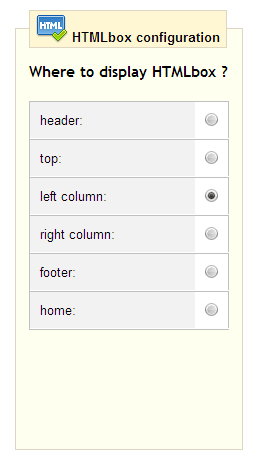
Html box configuration

as you see, you can check one position from many front-office hook list.
  • You can display your code in:
  • Header section of your shop
  • Top section of your shop
  • Left collumn of your shop
  • Right collumn of your shop
  • footer section of your shop
  • and home section of your shop

We checked left collumn. 
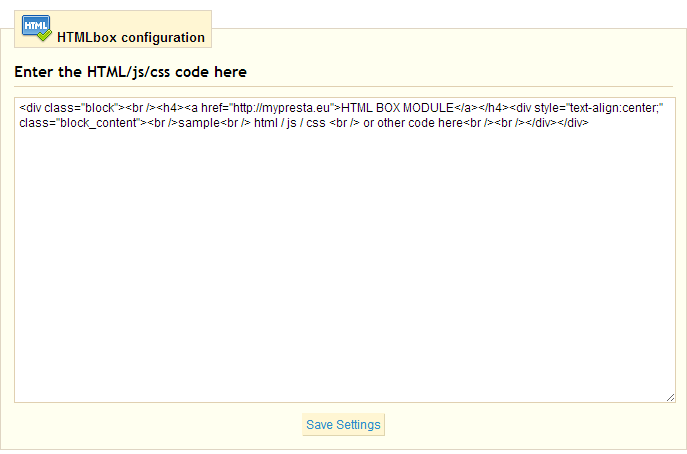


Text box window near hook list is place, where you put the code you want to dispaly. It could be any widget from other sites such like facebook, twitter, pinterest etc. So, put the code there and save settings of this module. Now you can refresh your shop page. You will see the new code exactly there, where you want and checked in module options.


niedziela, 26 sierpnia 2012

How to reset Prestashop admin password


Reset Prestashop admin password

If you dont remeber your Prestashop admin password and you are still trying to log in into Prestashop back office without effects. This short paper is exactly for you. With this article you will know how to reset your Prestashop admin password. Read this step by step tutorial for reset Prestashop password.


1. Log in into your FTP account
For reset prestashop password you must be able to log in into your Prestashop FTP account. That's important because you'll need access to one file in Prestashop directory described in next step.

2. Check config/settings.inc.php file
Look in config/settings.inc.php file in your Prestashop directory and find out the _COOKIE_KEY_ value. This value in IT nomencalture is called as salt.

3. Log in into your PhpMyAdmin
You must have access to PhpMyAdmin or other database managment system. If you're logged in, try to run the following SQL code and replace the <> variables with values:
<_COOKIE_KEY_> that is salt value from config/settings.inc.php file described in step 2
<yourNewPassword> that is your new password value
<youremailaddress> that is your administrator email address, probably yours ;)

1
UPDATE employee SET passwd = md5(<_COOKIE_KEY_ value><yourNewPassword>) WHERE email =<youremailaddress>”;

That's all. Now you can login into prestashop backoffice.

This article is copied from: How to reset PrestaShop admin password


Prestashop Discount Generator module