modules

Pokazywanie postów oznaczonych etykietą module. Pokaż wszystkie posty

wtorek, 26 marca 2013

Pro Prestashop slider module


This addon is awesome tool to highlight products, sites, social network profiles etc. With this feature you will be able to create own animated slideshow with any content you want. You can add captions, description and also pictures. Easy in use prestashop slider module, check how awesome it is!


This module is great tool for create outstanding slider in your shop. With this addon you will be able to create own personalized slideshow. Add own captions, descriptions and pictures. Create as many slides as you want. Highlight any important thing by few mouse clicks. 


Main feature of module
Main feature of this module is ability to create own awesome looking prestashop slideshows, where each slider contains any content you want.

Module configuration features
You can set up many main slider settings, like basic transition settings
Turn on autoplay, which mean that slides will rotate automatically
Turn off autoplay
Set up interval - which is variable for pause time between transitions
You can set up also value for increment background position - this is Parallax effect (moving background feature)
You can turn off parallax effect (just fill form with 0 value)

You can change main slider block settings
change width of block in px or in %
change height of block in px or in %

Set up CSS styles for module right from BO
Slider main CSS styles
Caption (header) CSS styles
Description CSS styles
Main Image CSS styles
Link button CSS styles
Arrows CSS styles
Pagination dots CSS styles

You can set up background (image or color) easily
You can use and define background color with easy in use color pallette tool
You can use and define background images
You can change background image and upload own backgrounds
You can change background image repeat mode

środa, 20 lutego 2013

Prestashop module Sticky Notes now also for front office!

prestashop sticky notes for front office This module gives you an ability co create sticky notes in your fornt office. You can add sticker anywhere you want and as many as you want. This tool is an awesome solution for adding additional informations to your shop. Each stickers will be visible for your shop guests.


Front office Sticky Notes Prestashop Module is awesome tool for you and your shop. With this feature you can improve your shop front office. This addon gives you ability for adding as many stickers as you want on your shop front office. You can add sticker anywhere you want. With this module you can inform your shop guests or customers about new products, holidays, you can extend product description, categories etc. Module allows you to add informations anywhere you want!

sobota, 9 lutego 2013

Prestashop facebook open graph tags module


Product Description: Prestashop Facebook Open Graph Tags

As we said, this module is awesome tool for adding open graph tags into your shop pages. Module adds different tags based om META or page content - for each pages of your shop. With this module your products will be look awesome on your customers Facebook Wall (just take a look into screenshots section).

Facebook open graph tags module for prestashop

Prestashop Module Open Graph Tags specification:
  • Main Features of module
  • Module generates Open Graph tags for all pages in your store based on PrestaShop engine
  • You can define default Title of the Facebook wall entry
  • You can define default Description of the Facebook wall entry
  • You can define default Image of the Facebook wall entry

Tags for each page  (different titles, descriptions and product images)
  • Module generates Open Graph tags for Products
  • Module generates Open Graph tags for CMS pages
  • Module generates Open Graph tags for Special pages New products, promotions etc.
  • Module generates Open Graph tags for Suppliers
  • Module generates Open Graph tags for Category tree
  • etc.


See how the products will look like with our module:

more informations about this addon you can read here: prestashop facebook open graph tags

Prestashop categories filter module - step by step


Prestashop Step by step - categories

As we said this module improves your shop Front - Office. With this module you can create a new category block exactly there where you want. Module supports three most important hooks - right column, left column and top section of your shop. But you can of course put it anywhere you want.


Main features of Step By Step categories tree filter module

Module creates a special block with categories tree filter
Module gives an ability for your customers to fast and reliable browse the categories tree
Module uses AJAX technique which mean that our addon loads categories tree without page refresh!

Module specification

Module allows you to select root category
Module allows you to setup the category tree depth
Module allows you to select place where you want to display categories block
You can select left column
You can select right column
You can select top section of your shop
You can also input categories block exactly there, where you want
You can personalize module by editing CSS styles - it's very simple and useful


more information about module you can find here: prestashop module filter category

Prestashop uploading files by customer to their orders


Prestashop module "Customer files upload" is an addon which provides your customers to add any file for their orders placed in your shop. You - as a shop administrator - are able to manage uploaded files in prestashop back office. You can download them into own hard disc drive, you can also delete them from server by one mouse click. Module is very useful both for customer and administrator.


Prestashop module "Customer Files Upload" main features:

For your shop customers:

  • Customers can upload image files to their order placed in your shop
  • Customers can manage own files
  • Customers can upload any file from own hard disc drive
  • Customers can add own file title
  • Customers can add own file description


For shop administrator

  • Shop administrator is able to manage uploaded files exactly from order list
  • Shop administrator has got access to latest files uploaded by customers
  • Shop administrator is able to download any file uploaded by customer
  • Shop administrator is able to delete any file uploaded by customer
  • Shop administrator has got an access to file name
  • Shop administrator has got an access to file description


piątek, 1 lutego 2013

Prestashop Facebook Shop tab examples of usage

We want to show you how you can configure module Facebook Shop for Prestashop . In this article you can see examples of usage. What is Facebook Shop for Prestashop module?  Facebook Shop module is the best way to create own PrestaShop store on Facebook. This module integrates your fanpage on Facebook with your shop based on PrestaShop engine in all available versions! Facebook Shop is a new, professional sales channel for distributing your stuff in social media networks. Our attractive tool that provides you shop for people with an account on Facebook will increase your income and increase consumer loyalty to your brand.

Examples of Facebook Shop for PrestaShop
 

click on image above to display shop on facebook. This is only several examples. More will be available soon!


piątek, 12 października 2012

Prestashop and facebook integration: shop in facebook fanpage tab

Today i want to write about presta and fcb integration module, and how to add own shop to our facebook fanpage!

Facebook Shop module for PrestaShop is the best and the most effective PrestaShop module, for integrate your shop with your Facebook Fanpage. This solution is not only a module but also a reliable application on Facebook that allows you to easily install the shop tab! In this way you will not have to create a new application. Just click, and use this great social media tool.


PrestaShop facebook shop tab

you can check demo version of this module, and you will se how does this feature work"


środa, 19 września 2012

How to input html, css, javascript code into my PrestaShop site?

In this article i will write about adding html, css, javascript and other "client side" code into any place in our shop. Of course you can do it manually by editing template .tpl files of your shop theme. However, this method can be a bit annoying and difficult for users without a basic knowledge of programming languages ​​and smarty. In this short article i want to describe free module for adding html, css, javascript code in Prestashop.


Module is called HTML BOX and you can download it for free from MyPresta.eu website
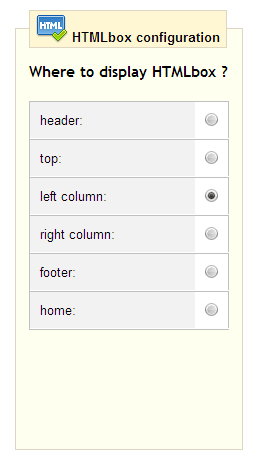
Usage of this module is very simple. Just download and install this module in your prestashop back office. Then you must go to configuration site of this module and select place, where you want to input html, css, javascript, other code. Exactly as we checked on image attached below:

Html box configuration

as you see, you can check one position from many front-office hook list.
  • You can display your code in:
  • Header section of your shop
  • Top section of your shop
  • Left collumn of your shop
  • Right collumn of your shop
  • footer section of your shop
  • and home section of your shop

We checked left collumn. 


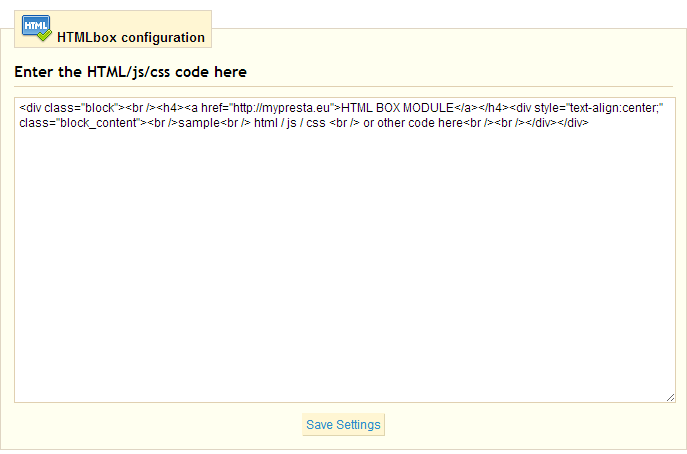
Text box window near hook list is place, where you put the code you want to dispaly. It could be any widget from other sites such like facebook, twitter, pinterest etc. So, put the code there and save settings of this module. Now you can refresh your shop page. You will see the new code exactly there, where you want and checked in module options.


środa, 12 września 2012

Facebook integration: Like Box Prestashop Module

Before I write something about adding like box plugin to your shop site I want to say a little bit about what exactly  is Facebook Like Box?


The Like Box is a social plugin that enables Facebook Page owners to attract and gain Likes from their own website. In our opinion this social media plugin from facebook is one from the most important thing in every shop based in PrestaShop engine.


The Like Box enables users to:
  • See how many users already like this Page, and which of their friends like it too
  • Read recent posts from the Page
  • Like the Page with one click, without needing to visit the Page

How to add facebook like box plugin to my PrestaShop?

You can add this great plugin in two ways:
  1. First way is use one from many available modules in oficial PrestaShop addons store. For example, here is the Facebook Like Box Pro module, which costs 29,90 € (price without tax, which mean that module costs 35,76 € with tax). You can also bought suchlike module named Prestashop Facebook Like Box module for about 14,00 € (this is price with tax).
  2. Second way means that you can add Like Box plugin manually. But in this is related to the necessity of knowing programming languages. I will write now how to add facebook like box plugin into your shop based on PrestaShop engine. For example, we will add like box plugin into right collumn of your shop.

    In the next article I will write step by step tutorial!


poniedziałek, 10 września 2012

Prestashop and Facebook integration: Facebook sales tab

Today i want write something about next module to integration your shop with facebook. I want to introduce you to Facebook sales tab module. Module is one of the most attractive way to advertise your offer on Facebook.

Prestashop and facebook integration: sales tab by http://mypresta.eu


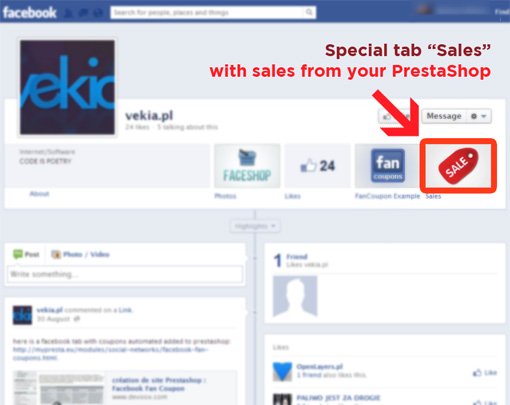
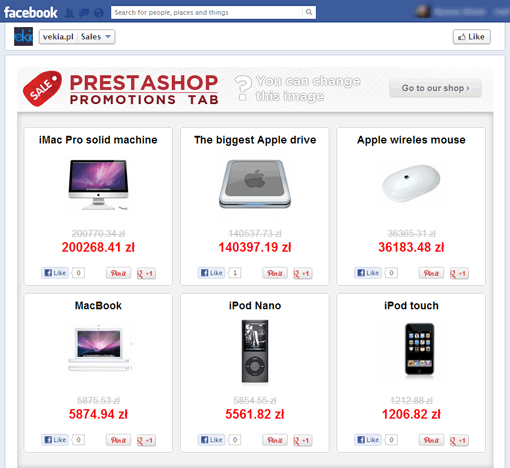
Facebook sales tab is a PrestaShop module, which can increase the number of customer visits and boost your income. Our solution integrate your shop with Facebook Fan Page by adding a special "Sales" tab into it, where user gets completly list with products in sale from your shop based on PrestaShop engine. Check Prestashop Facebook sales tab demo.

How this Prestashop and Facebook integration works?


Prestashop and facebook integration: sales tab by http://mypresta.eu
Our module and Facebook application add automatically to your Fanpage on Facebook special tab, where users can find product in "Sale" From your shop. 


After clicking to "Sales" tab, user gets list of products in "sale". You can manage this page and configure it exactly as you want using module back office.


piątek, 24 sierpnia 2012

How to install modules in Prestashop ? Step-by-step tutorial

Ability to use modules in Prestashop are the most important thing. With the modules created by the Prestashop community (which mean community of normal users, agencies, developers, freelancers etc.) anyone, who use Prestashop e-commerce solution can exted store for new functionalities and features. Professional modules created by agencies or experienced developers are usually paid - you have a guarantee that the module was professionally executed and in compliance with applicable standards, safety rules and other important things in software developing. You can also get free modules, but you have no guarantee that everything will work correctly without compromising the safety of your store.

In this paper you will read about procedure of installing Prestashop modules. I hope, that this article will help you in understanding an essence of installing modules, and will be helply in your first steps with extending functionalities of shop based on Prestashop engine.

How to install prestashop module?

1) Log in into your shop
In first step you must login to your  Prestashop back-office. Remember, only user with granted privileges to access to the modules section can instal, configure and uninstall modules.  Make sure that you log in to the correct account. It would be best if you log in with an administrator account.  I hope, that you remeber your email and password used in installation process ;) 

prestashop backoffice login form by MyPresta.eu

2) Go to "Module" section
If you are already logged in into Prestashop backoffice correctly, now you can go to "Modules" section. Just click in "Modules" position in Administration tabs as we show on the picture below:

select Modules in your prestashop backoffice MyPresta.eu

3) Click on  " Add a new module Add a module from my computer"
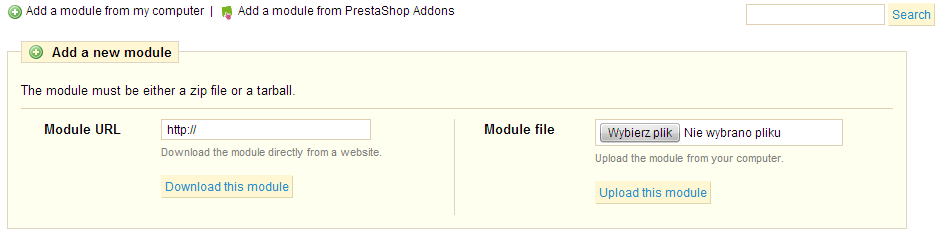
In modules section you will see two buttons:  Add a new module Add a module from my computer   |    Add Add a module from PrestaShop addons. Below this two buttons you will see list of modules that are rolled up, by category. After clicking correct button, you will see two simple forms:


As you see, you can add modules in two ways. You can upload module from URL, and upload from your HDD (hard disc drive) or other physical disc.

3) Uploading and install module from URL
To upload module from URL you must have a valid link (URL) which goes to archive with packed module. Paste the correct link into "Module URL" input field and click "Download this module" button. For example we upload our Import vouchers from file in Prestashop module. As you see on image below, when everything is ok, you can find module using search tool. Just write first letters of module name and you will see full name of module in clickable tooltip:


Just click on it and go to 4 step for read about last "installing" procedure.

3) Uploading and install module from your HDD (hard disc drive)
If you downloaded any module into your HDD, you must upload it before you want to install it in your shop. Click on upload form and select correct file (packed) with your module. As in the previous case, we use our module for Importing Discount codes from file in Prestashop. After selecting module from your disc now you can click "Upload this module". Exactly as in previous case, you can find module using search tool. Just write first letters of module name and you will see full name of module in clickable tooltip:


Just click on it and go to 4 step for read about last "installing" procedure.

4) Installing module in your Prestashop
Now you can install module in your shop. This step is the last step in the Prestashop Installation procedure. After clicking on tooltip with your module, you can see new loaded page with your module on list:


On right side of table you can find "Install" button. Click on it to install your module. After that, and if with installation process is everything ok, and module works correctly - instalation is succesfull:


Now you can configure your module or Uninstall it if you don't want to use it. That's all, hope I will help you with this basic Prestashop training